
Piping, personalization, and embedded data 🪄
You can make every question feel like it was written for one person. Add a participant's first name, an answer from an earlier question, or data you pass in your study link, right inside your question text.
How it works
There are three ways to bring information into your questions:
- Personalization inserts information Ethnio already knows, like the participant's first name or your study name.
- Piping inserts an answer from an earlier question.
- Embedded data inserts a value you pass through the study link URL or JS.
Each one shows up in your text as a variable, like First Name, Q3 Answer or D1 product_used. Participants see the real value instead.

For example, a participant named Sarah who came from a link with product_used=report and picked "the mobile app" in Q3 sees:
Sarah, what's your favorite report in the mobile app?
Add a variable to your question
- In the study editor, click into a question title. You can also use the description of a question, a formatted text block, the welcome page, video recording instructions, or an ending.
- Click the Add personalization button, or type {.
- Pick a tab: Personalization, Piping, or Embedded data.
- Click the item you want to insert.
💡 Pro tip: Type { and keep typing to search all three tabs at once, for example {name. Then use the arrow keys and press Enter.
Personalization
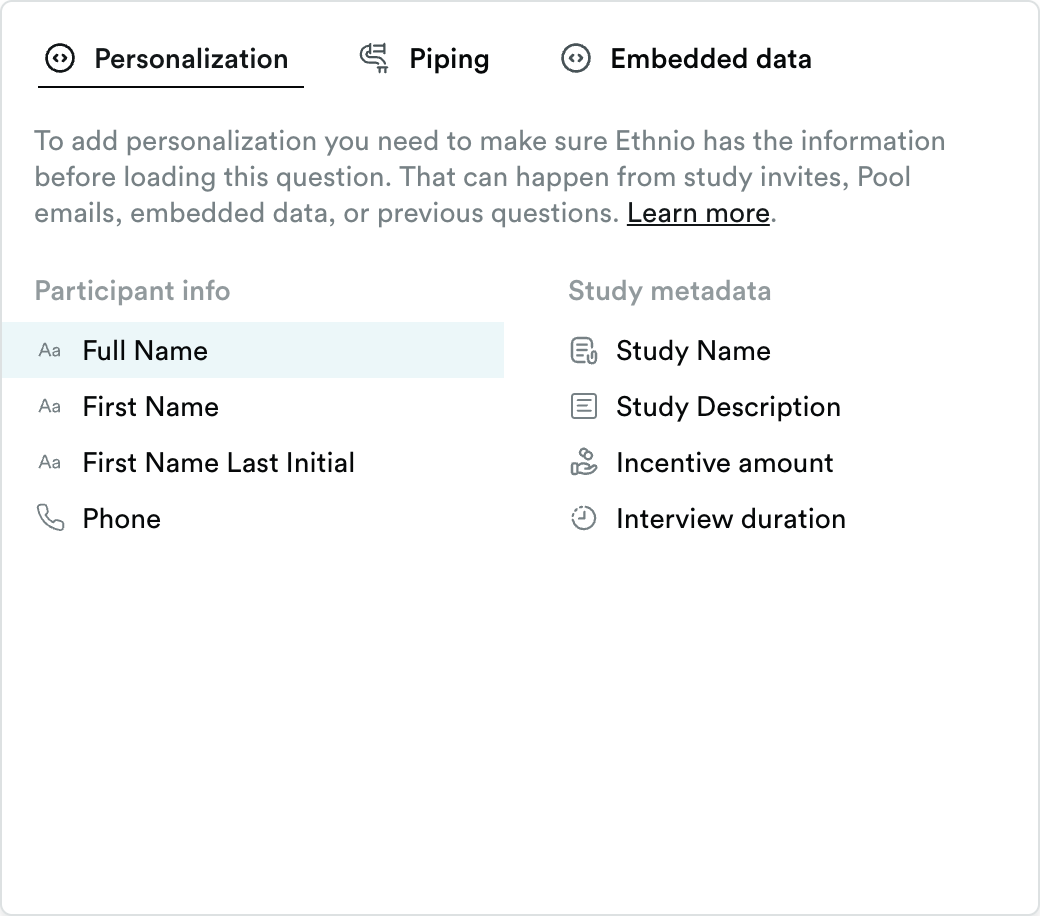
The Personalization tab has two groups:
- Participant info: Full Name, First Name, First Name Last Initial, and Phone.
- Study metadata: Study Name, Study Description, Incentive amount, and Interview duration. Incentive amount shows when your study uses incentives, and Interview duration shows when it uses scheduling.
Ethnio needs to know the information before the participant reaches the question. For participant info, that can come from study invites, Pool emails, embedded data, or an earlier name or phone question. Study metadata comes from your study plan. Read more about study personalization using your study plan.
Piping
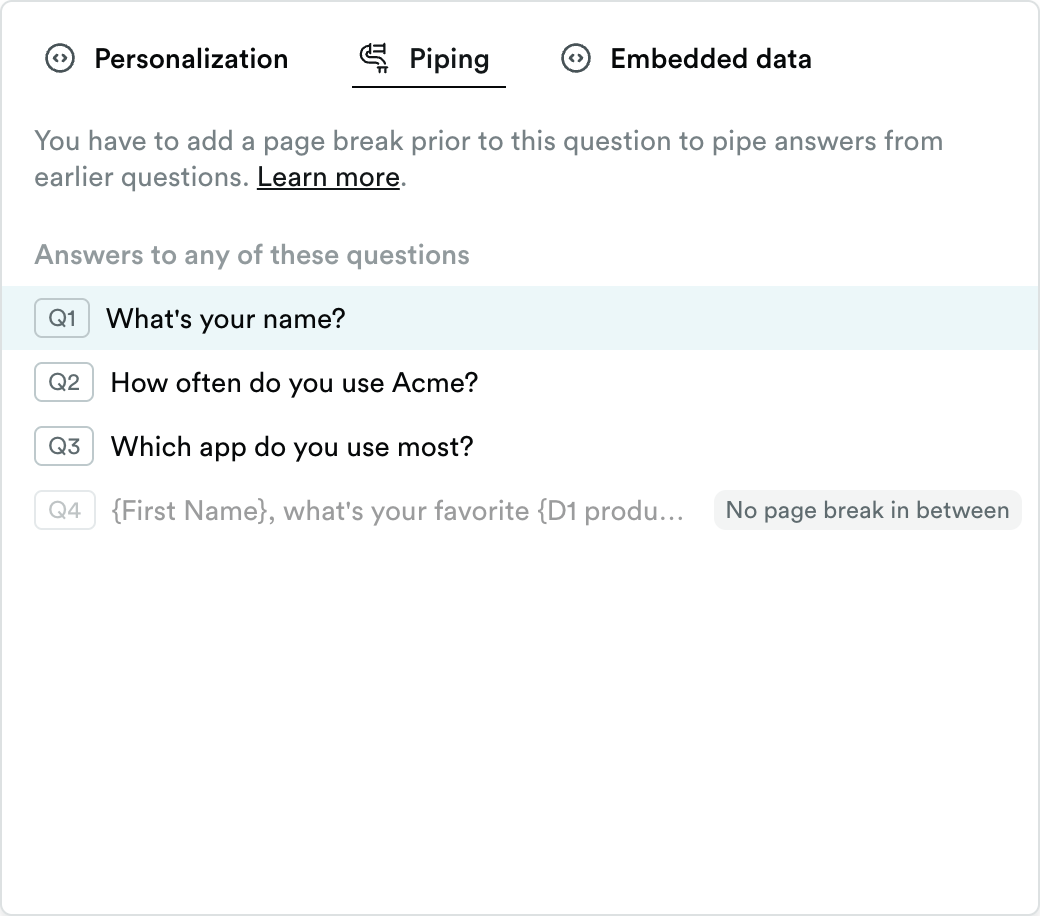
The Piping tab lists the questions that come before the one you're editing. Click a question to insert its answer.
You can only pipe answers from questions on earlier pages. A participant has to finish a page before Ethnio has their answers.
If an earlier question is on the same page as your question, it shows up grayed out:
- No page break in between means your study uses Manual page breaks. Add a page break before your question, and the answer becomes available. Read more about page breaks in the study editor.
- On the same page means your study uses Automatic page breaks. In Automatic mode, questions in a group share a page with the question right before the group. Move your question out of the group, or switch your study to Manual page breaks.
Good to know
- If a participant picks more than one choice, Ethnio lists their answers with commas.
- Endings can pipe any answer, because they show after the last question.
- Some question types have no answer to pipe, so they don't show up in the Piping tab: Scheduling, Tech check, Video recording, Image upload, Formatted text block, Image & text, and the welcome page.
Embedded data
The Embedded data tab lists every parameter of your embedded data questions, like D1 product_used. The value comes from your study link URL, the JS code of a web intercept, or the URL of an app intercept.
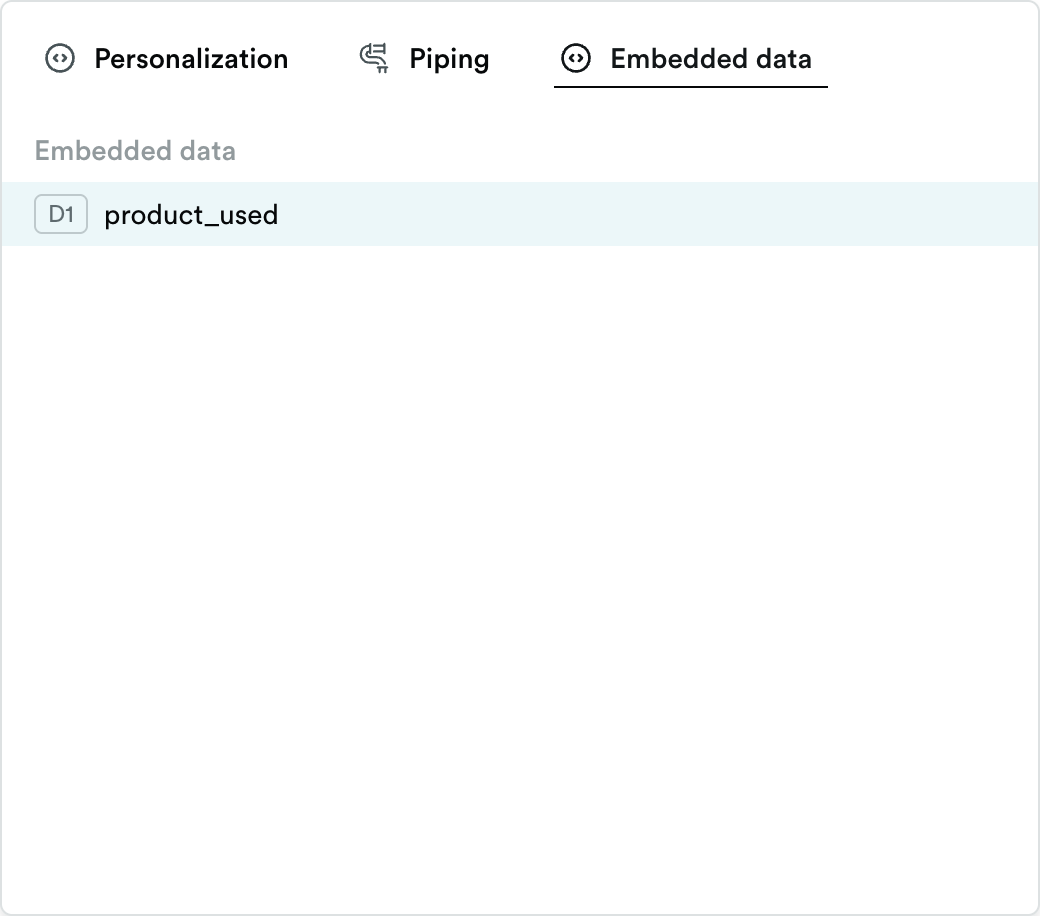
Embedded data is ready when the study loads, so you can use it in any question, even on the first page. To set it up, head to Add content › Embedded data. Read more about saving embedded data.
Fallback text
When there's no value, participants see the fallback text instead. That can happen when a participant skips a question, or a link has no parameter.
- Click the variable in your text.
- Click the Variable options button in the toolbar above your text.
- Type your Fallback text, then click Save.
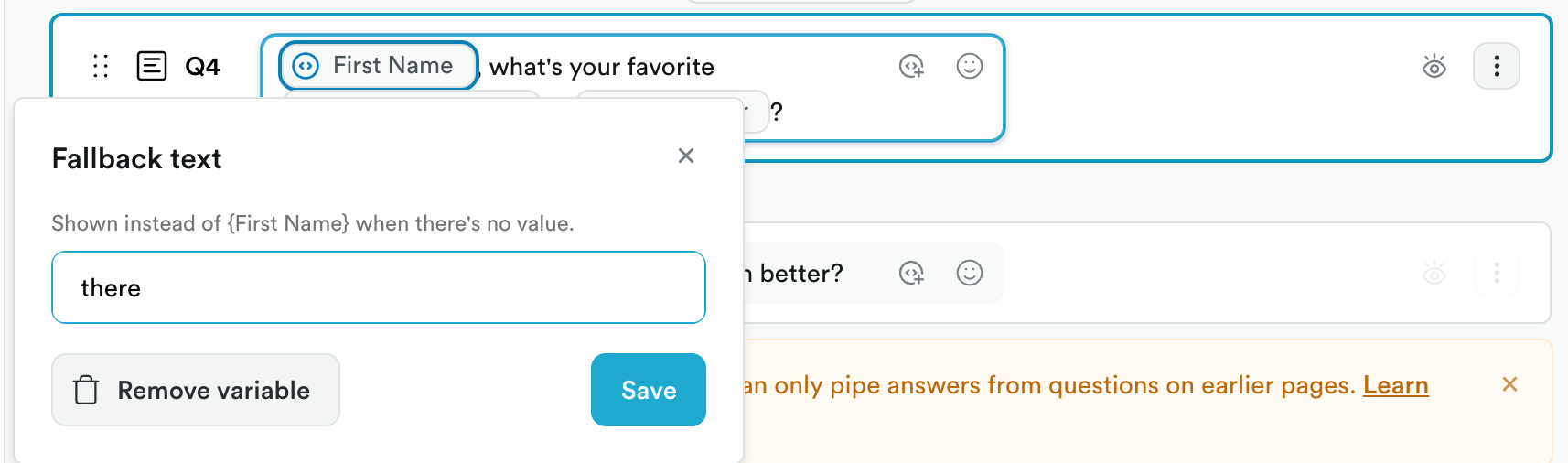
For example, with the fallback "there", the title "Hi First Name!" shows "Hi there!" when Ethnio doesn't know the name.
Preview it
Click Preview to try your study. In the preview options, switch between Variable names and Existing data to see either the variable names or the real values. Type a name, phone, or email under Participant data to see personalization filled in.
Troubleshooting
A question is grayed out in the Piping tab. It's on the same page as your question. Add a page break between the two questions, or move your question to a later page.
A yellow warning shows below my question. "Heads up the answer to Q4 can't be piped here" means Q4 is now on the same page or a later page, for example after you moved it or removed a page break. Move Q4 to an earlier page, or add a page break before your question. "Heads up some piping here comes from a deleted question" means the question no longer exists. Remove the variable, or participants will see the fallback text.
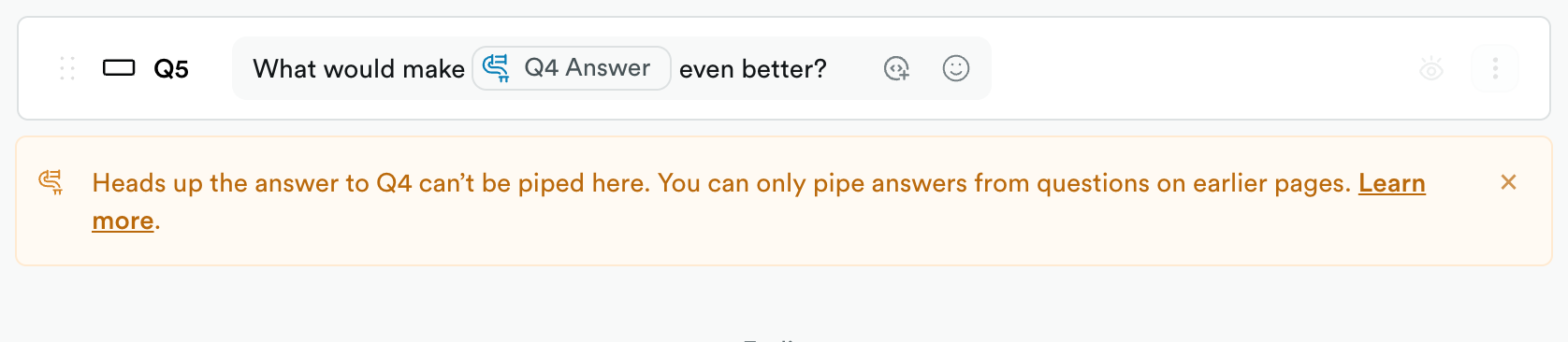
A question doesn't show up in the Piping tab. Only questions before your question show up, and only question types that have an answer to pipe.
Participants see the fallback text. Ethnio had no value for the variable. Check that the earlier question was answered, or that your study link includes the parameter.
Still need help? Reach out to help@ethn.io and we're happy to help.