
All about the Ethnio MCP
Everything you need to know about setting up and using the Ethnio Model Context Protocol to access Ethnio features from your favorite AI like Claude or ChatGPT.
🛡️ No participant PII is ever passed to AI via the Ethnio MCP
What's Available via the MCP
The connector can see and touch the following areas of Ethnio.
Finding Studies and Participants
- Search studies by name, id, or public key, including archived ones
- Look up a single study: name, type, stage, live or paused status, response count, incentive, creator, and links back into Ethnio
- View a study's questionnaire (question text, types, and answer choices) for studies built in the beta editor
- Search for a participant by exact email, exact full name, or participant id, and see their appointments
Privacy note: remember that green callout up there? 👆 Going to say it again already: participant names and emails are always hidden, tokenized, and masked before they get to AI. Only the first three characters of a first name will ever show, and partial name or email searches never match. This is by design and cannot be turned off.
Scheduling and Calendar
- View the interview calendar for a study, up to 7 days at a time, including slot status (open, potential, invited, confirmed, past) and collaborators' busy blocks from connected calendars
- Create time slots, either as one off slots or a repeating weekly series, including group session slots
- Update a time slot: change its time, type, facilitator, location, or group size
- Delete time slots, individually or by date range
- Invite a participant to a slot
- Re-invite a participant who hasn't confirmed
- Confirm an appointment on the participant's behalf
- Ask a participant to reschedule (sends a self serve reschedule link)
- Reschedule an appointment to a specific new slot yourself
- Cancel an appointment
- Mark a no show
- Resend appointment details (location, meeting link, calendar invite)
Anything that emails a participant or changes a live slot with active appointments attached will ask for confirmation before it sends or applies. 👍
Study and Study Editor
- Add, update, delete, or reorder questions on studies built in the beta editor (questions library and templates also supported)
- Create a new study from scratch, including participant facing copy, targeting rules, and a full questionnaire with screening logic
- Update a study: rename it, pause or activate it, change its stage, targeting, folder, or participant facing copy
- Archive or unarchive a study
Limitation: studies built in the classic editor are read only for questions. The connector can still see the study itself, just not edit its questionnaire.
Quotas
- List quotas for a study and see live progress against each target
- View a single quota in detail, including its exact matching conditions
- Create a quota based on screener answers, tags, locations, or devices
- Update or delete a quota
What It Can't Do
- It cannot reveal full participant names or emails under any circumstances
- It cannot edit questions on classic editor studies
- It cannot permanently delete a study, only archive it
- It cannot bypass the confirmation step for actions that affect live appointments or send participant emails
Who Can Use It
Access follows the same permissions as your Ethnio account. If you don't have edit access to a study in Ethnio itself, the connector won't have it either.
What You Can Ask
You can talk to the connector in plain language and it will translate your request into the right Ethnio actions. A few examples:
- "Show me the schedule for the Q4 Onboarding study this week"
- "Invite the participant who picked the 2pm slot tomorrow"
- "Create five 30 minute interview slots next Tuesday afternoon"
- "How full is the Spanish speakers quota on this study?"
- "Add a screener question asking which browser they use"
- "Pause the Mobile App Usability study"
- "Find the upcoming appointment for a participant by their email"
It cannot do anything you couldn't already do in Ethnio, and it will ask you to confirm before sending participant emails or changing anything with active appointments attached.
Connecting your AI to Ethnio
To get started follow these steps:
-
Go to connectors › add in your favorite AI of choice (Claude, ChatGPT, etc)
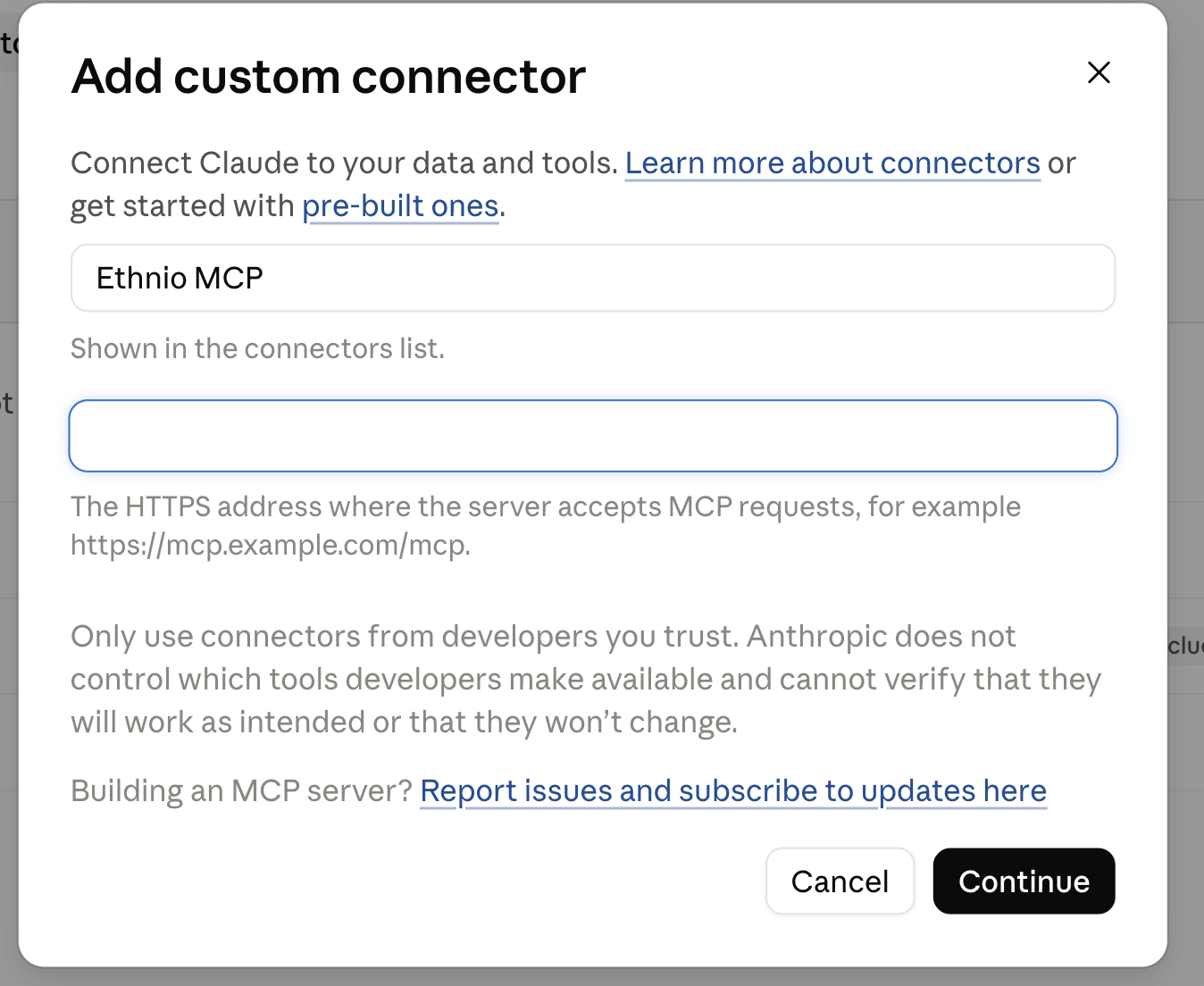
- Head to integrations › MCP AI in your Ethnio account, then copy the MCP URL
- Paste that URL into the field above
-
Setup permissions how you'd like
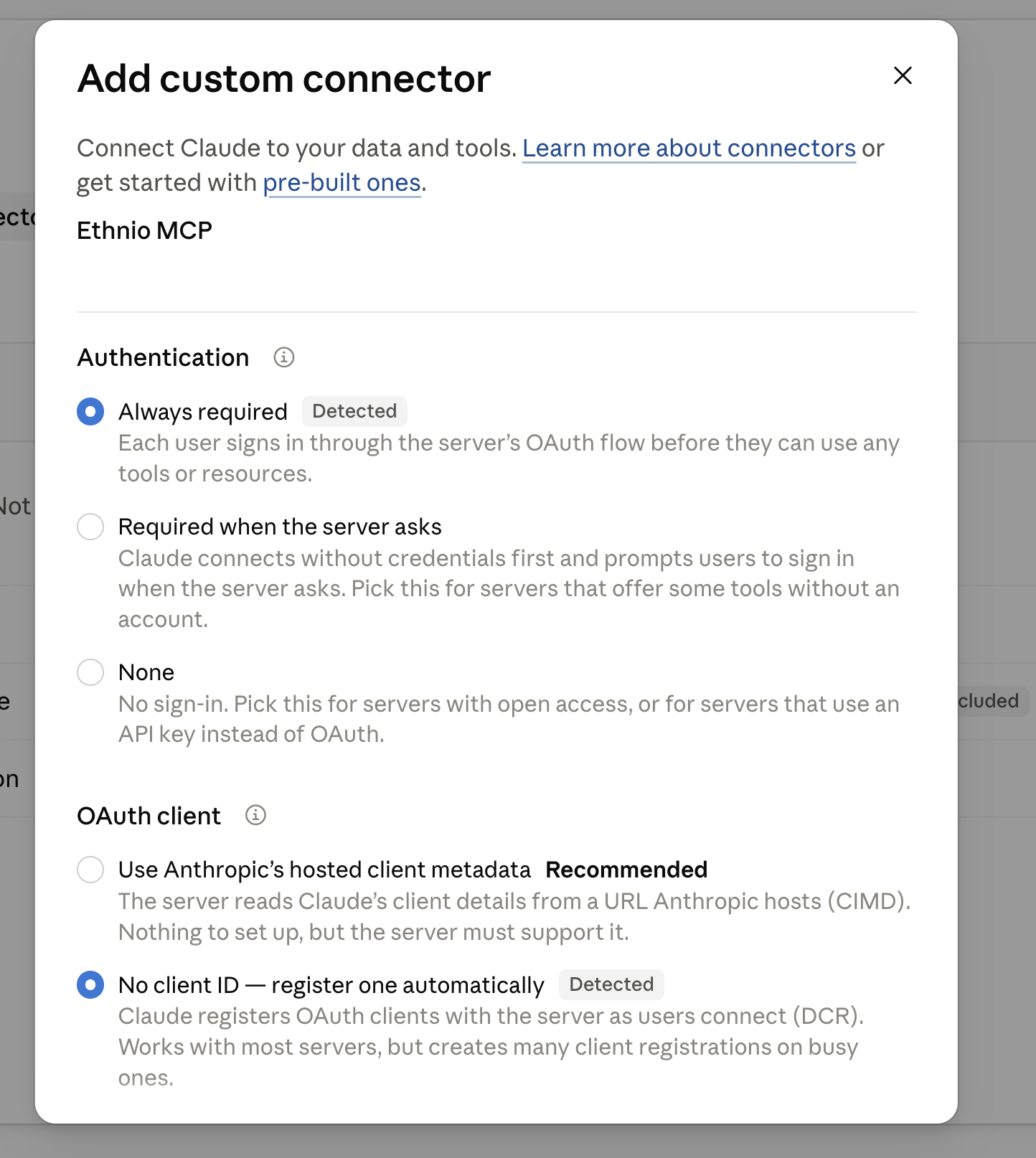
- That's it! You should be all set to control your Ethnio account from your preferred agentic interface.
Permissions for actions
How you want your agentic AI to handle Ethnio permissions while chatting. For example, if you want to create a study, do you want your AI to ask for approval each time it tries to do that in Ethnio:

What approval for Ethnio actions looks like
If you select approval above, every time your AI performs one of those actions, you'll see something like this:

How to use Ethnio via MCP
Now that you're connected, you need to mention Ethnio in any chat prompt in any natural language way:

What not to do:

Now the study has been created - you'll see something like this
The MCP can create screener questions (only in the study editor), quotas, and the study plan:

If you head to Ethnio, you should see the study (turned off):
